Contractor Management,
Made Simple
Every contractor's safety file, current and in one place
Stop chasing contractors for paperwork. You and your contractor work in one shared file, not a once-off pack at the gate.
Contractors upload their own documents and you verify them. Expiry dates are watched every day, so when something lapses both sides see it and act.
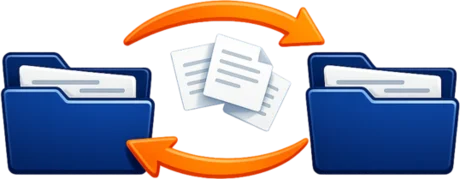
Shared both ways
You and your contractor see the same up-to-date file. Each side decides what to share.
Verified, not just uploaded
Nothing counts as compliant until you have opened and verified it.
Expiry dates checked daily
See what is due before it lapses, not after.
Bring a contractor on site in four simple steps
From the first invitation to the day the work ends, everything happens in one place.
Find or invite
Search businesses already on OHS Online, or invite any company by email. Two short steps: who you are hiring and what they will do.
- A secure personal link by email
- No username or password
- The link lasts a year
Agree the work
Put the Scope of Work in writing on SafetyWallet's template, signed on a clean PDF. When the job changes, issue a new version. The older ones are kept.
- Section 37(2) Agreement, signed and filed
- Your "Duty to Inform" risk sections, acknowledged by the contractor
Share and verify
The COID Letter of Good Standing and the Section 37(2) Agreement are always shared. You choose what else the contractor must supply.
- Verify or reject each document, with a reason
- "Am I Ready?" shows what is still missing before work starts
Monitor and act
See what is due or expired, every day. When a job is done, or a contractor falls short, you stay in control.
- Suspend cuts all access
- Reactivate restores it
- Terminate ends the relationship
Choose from hundreds of businesses already set up
Find contractors and suppliers who already work in OHS Online, in the SafetyWallet Contractor and Supplier Directory.
Contact UsFor clients
Search participating providers and add them to your site in a few clicks.
For contractors and suppliers
Get seen by SafetyWallet subscribers. Sponsored advert space is there for providers who want to stand out.
Listed is not certified
A directory listing is not a certificate or an approval. You still check every contractor's documents for your own site.
Nothing to install or pay for your contractors
Contractors keep their file current from a one-page portal, and work on site from the SafetyWallet app.
The SafetyWallet app on site
Open the permit from the client's shared link, sign the team on, do the site checks, record readings and attach photo evidence. All on the phone.
One page. No menus, no password.
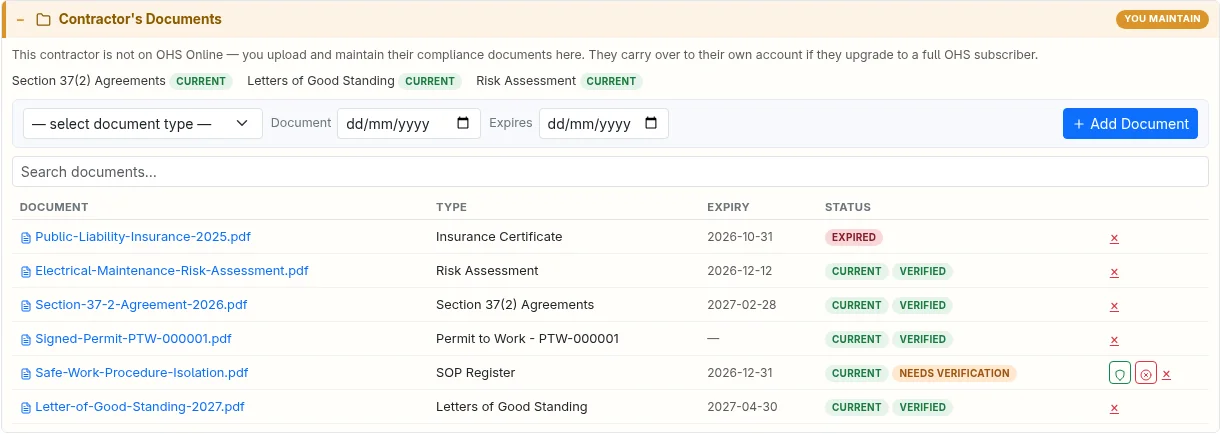
A contractor without a subscription opens one page from the invitation link. They upload, replace and view documents, read what you shared, and see why a document was rejected.
Only you, the client, can verify. Contractors who are subscribers work from their own OHS Online.
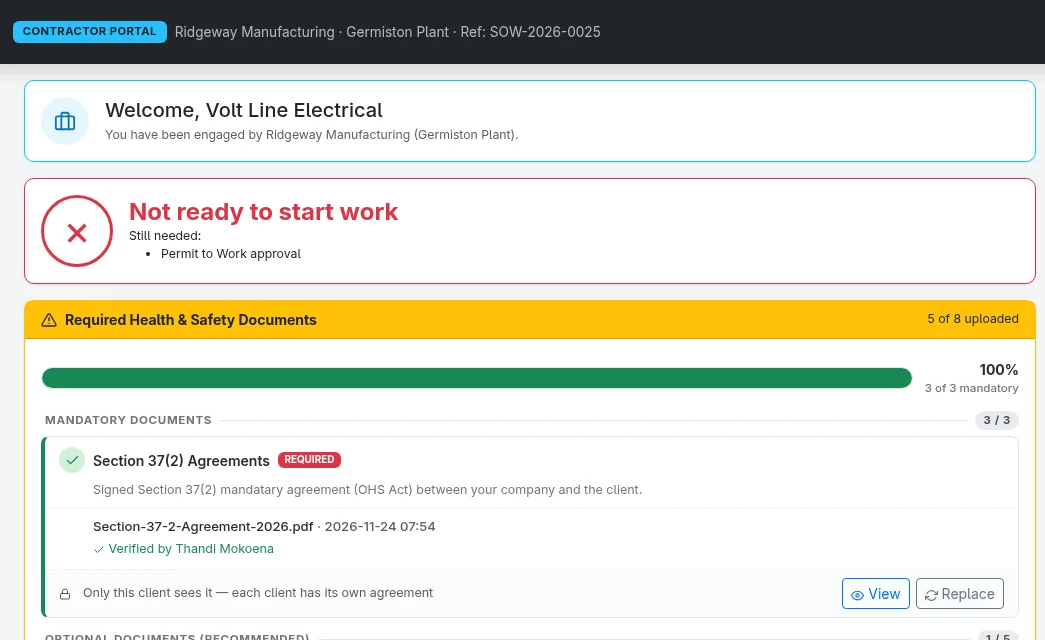
The contractor portal: what is verified, what was rejected and why
Inspections on the phone
Every branch a person is linked to, with company, branch and search, in their pocket.
Rejections that explain
The contractor sees the reason in their portal and by email. A corrected upload starts the check again.
Legal templates, ready
Download the Section 37(2) Agreement and other legal templates, kept up to date by SafetyWallet.
Catch expired documents before the auditor does
Every record carries a status worked out from its expiry date. Counters take you straight to what is expired or due.
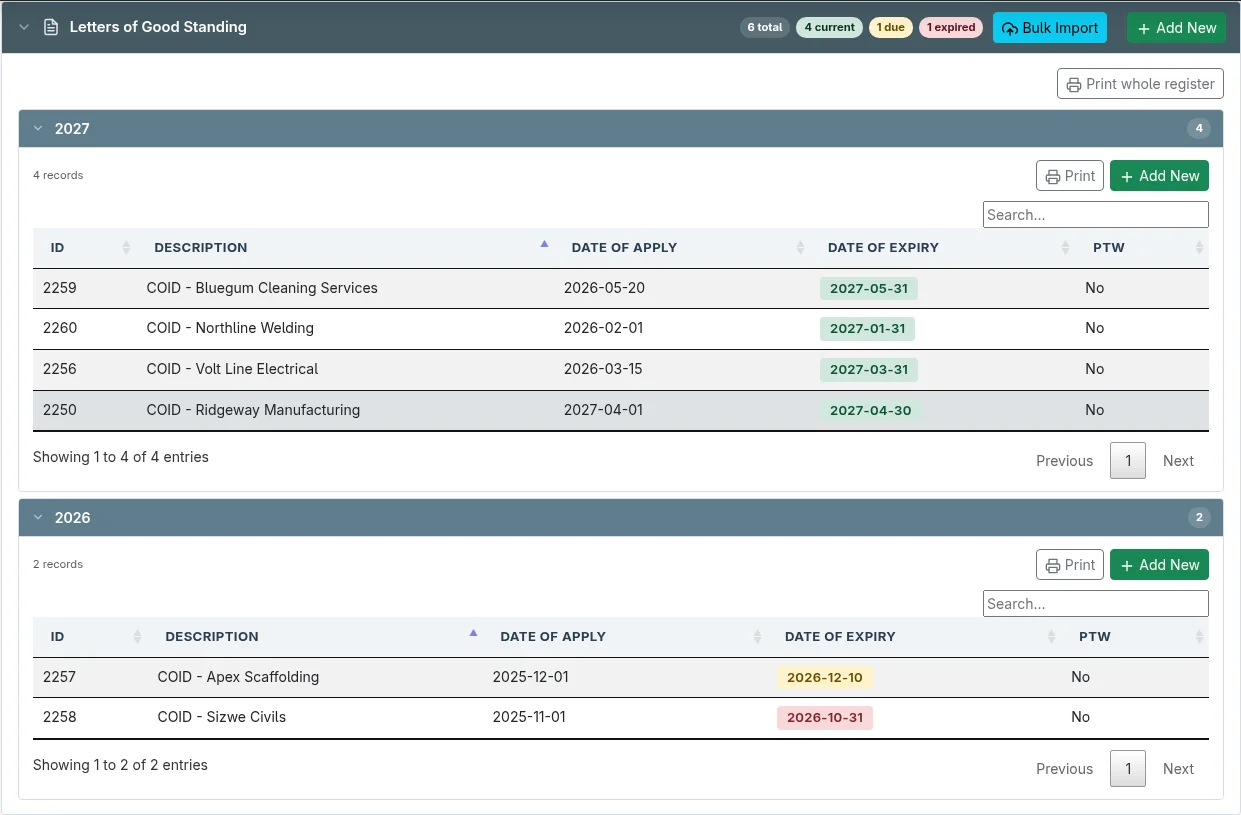
Linked records, checked every night
Linked records, such as a crane and its load-test certificate, get a red, orange or green compliance dot, rechecked every night.
Verified before it counts
Key documents, such as Letters of Good Standing, Section 37(2) Agreements, Licences and Medicals, must be verified before they count. Around 45 compliance registers work the same way.
Permit to Work, online and set for each contractor job
Hot Work, Isolation / LOTO, Working at Heights: set up each permit type once, with its own Control Points.
For each contractor job, choose the permits and Control Points that apply. The contractor completes the permit and submits it for your approval.
On site, the team captures checks, readings and evidence on the SafetyWallet app. Control Point states can be changed on the spot.
Set per job
Only the permits and checks that apply to the work.
Clash warnings
Two permits in the same work area at the same time are flagged, so your reviewer can send one back for a new time.
Eight stages, one clear permit trail
Eight stages, ending with a closed permit and a full history.
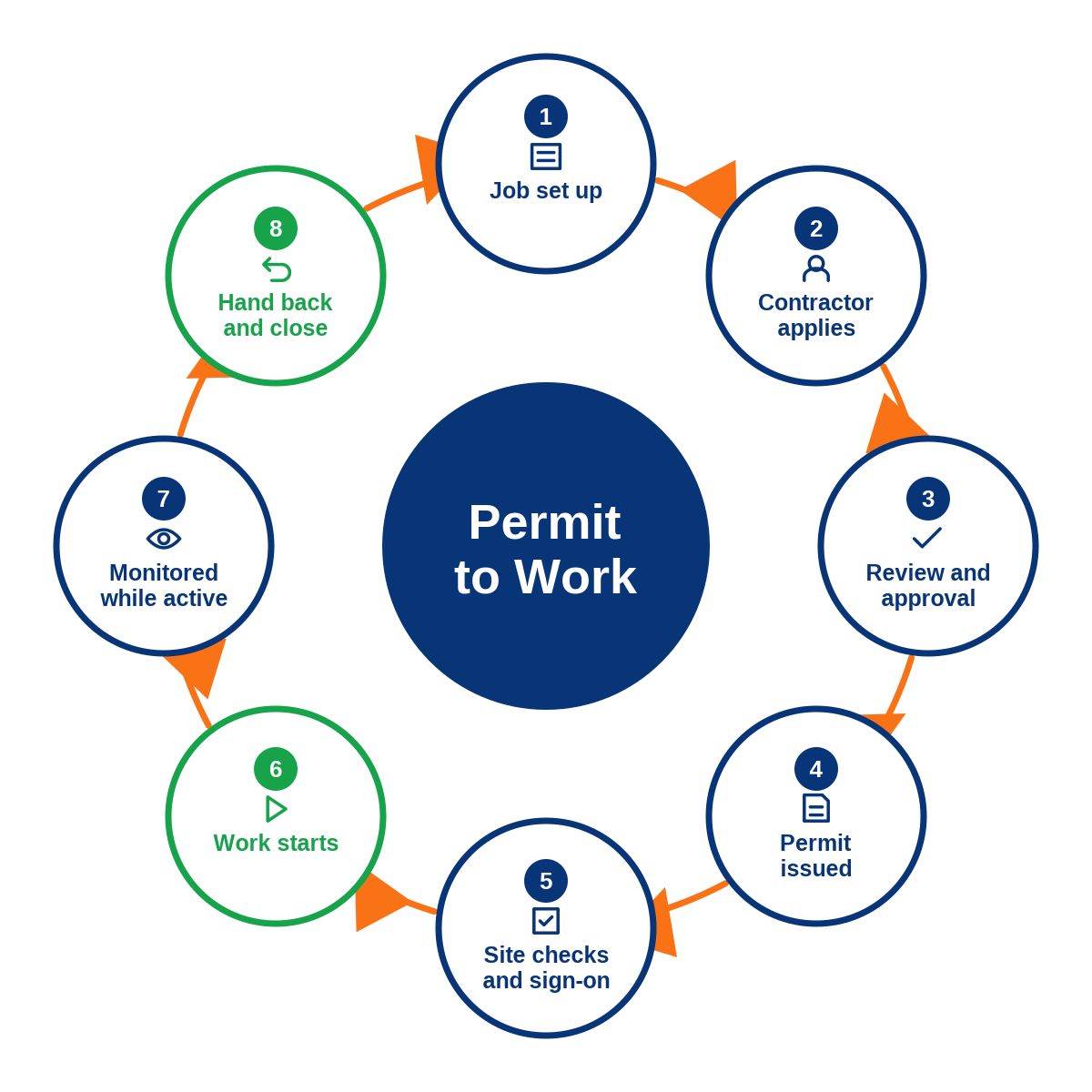
- 1Job set up
You mark the job as needing a permit and choose which optional safety checks apply. - 2Contractor applies
Your contractor submits the permit online, with their workers and the work to be done. - 3Review and approval
Your safety reviewer and the right specialist approvers check and approve it, for example hot work, lockout or work at heights. - 4Permit issued
Once the permit is issued, anyone on site can open it on their phone from a shared link. - 5Site checks and sign-on
The supervisor works through the safety checks with photo evidence, records gas readings, confirms the Control Points and signs the team on. - 6Work starts
Work starts only once nothing stops the permit. OHS Online warns if another permit overlaps the same area. - 7Monitored while active
Retests and time limits are tracked, and the supervisor can ask for more time. - 8Hand back and close
The contractor hands the area back, it is checked, and the permit is closed with a full history.
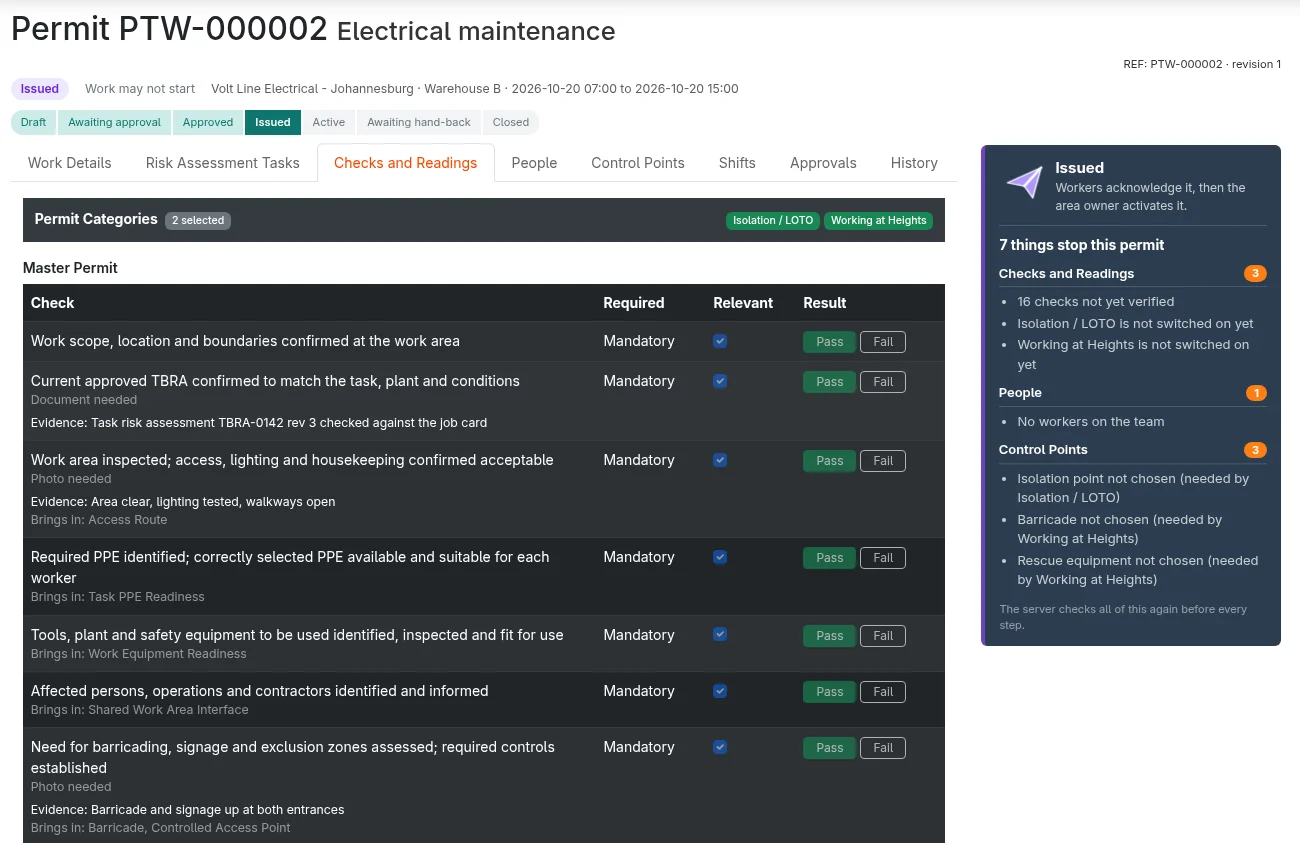
An issued permit: checks with evidence, and a side panel listing everything that still stops work
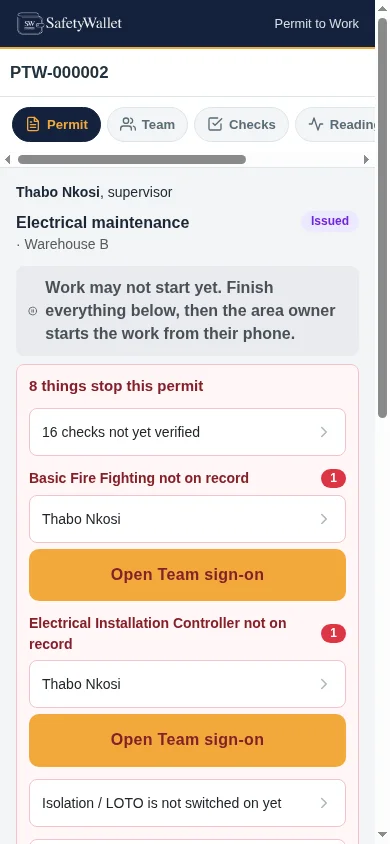
The same permit on a phone, opened from the shared link
Every isolation and barricade, checked with a scan
Every isolation, barricade and rescue kit on site gets a QR label. Your supervisor scans it and sets its state on the phone, and anything unsafe stops the work it affects.
QR labels for every point
Print sticky QR labels for lock-outs, barricades, anchor points and fire extinguishers, and fix them where the work happens.
Scan, don't guess
The supervisor scans the label from the permit on their phone. A label that doesn't belong to that permit is refused.
Unsafe stops the work
A compromised isolation or a breached barricade stops the permits it affects. You get a full history of who changed what, and when.

Scan this Control Point with your phone
Point your phone camera at the QR code. You'll see what your supervisor sees on site: the Control Point, its state, and whether work may go ahead.
See what your supervisor sees on site when they scan a Control Point: its state, and whether work may go ahead.
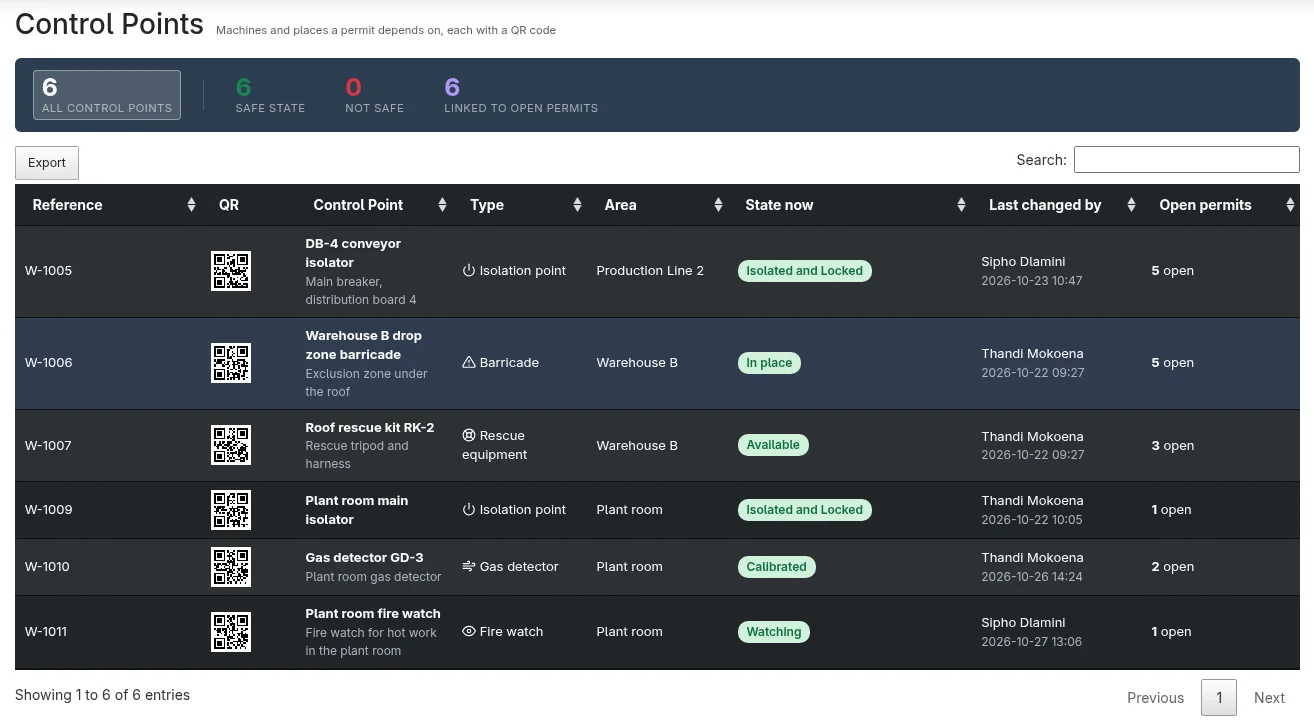
Every Control Point on a branch, with its QR code, state and open permits
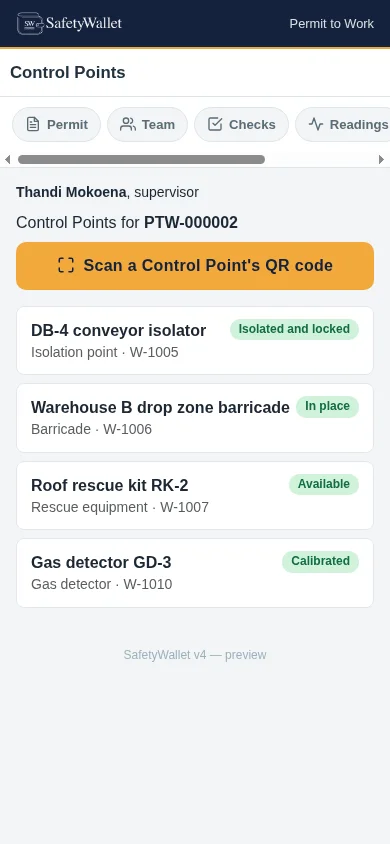
On the phone: scan a Control Point straight from the permit
Full control over every contractor on site
OHS Online by SafetyWallet keeps every contractor's file organised, shared and current. You decide who is ready to work: verify or reject each document, and see at a glance what is still missing.
It works alongside your Health and Safety Management System and the rest of OHS Online.
Common questions about the Digital Health and Safety File
What clients, contractors and suppliers usually ask first.
The most convenient way to manage contractors, today
Book a demo and our team will walk you through Contractor and Supplier Management in OHS Online by SafetyWallet.
Scanning Control Point…
Demo: a made-up Control Point with a random state